In my previous post, LLM vs Agent vs MCP, I traced a Kubernetes troubleshooting question through every layer – the LLM that reasons, the agent host that orchestrates, tool calling, and the MCP server that executes against the real cluster. This post is where I try to build a local Kubernetes AI agent for real: a local LLM with Ollama, an agent, and a Kubernetes MCP server, set up in my lab to deliberately break pods and watch the agent diagnose them, with no cloud APIs and no costs. I promised I would share the observations, the gotchas, and real terminal output in a follow-up.
This is that follow-up. And in the spirit of honesty: it did not go the way I planned. I never reached the “watch it diagnose a broken pod” moment, because the setup hit a wall on my laptop’s hardware. That turned out to be the interesting part. Fighting through the failures taught me far more about how these layers actually behave than a clean success would have.
So treat this as the gotchas post.
What I set out to build
My goal was simple. I wanted to ask a question such as, “Why is this pod failing?” and have the agent inspect my local Kubernetes cluster and explain the problem – exactly the OOMKilled nginx scenario I walked through conceptually last time.
Above all, I wanted everything to run locally. That way, the lab would stay private and avoid cloud API costs.
Here is the experience I wanted to create:
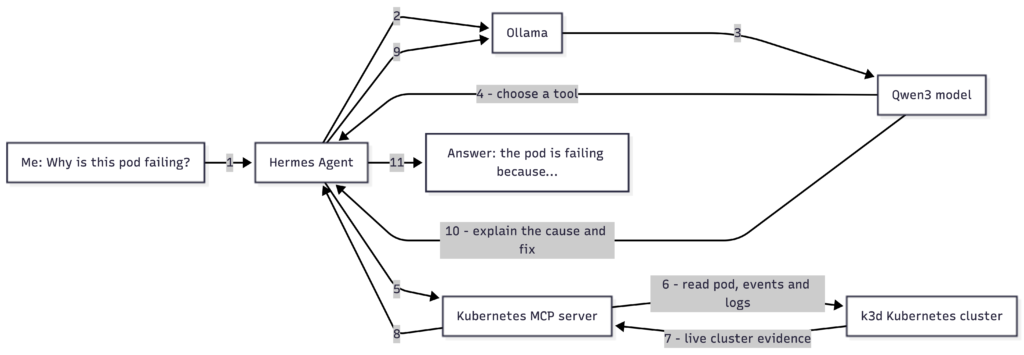
In other words, I wanted the model to do more than answer from memory. It should inspect the live cluster, collect evidence, and explain that evidence in simple language. That is what makes this an agent rather than a normal chatbot – the reason, act, observe loop from the previous post.
For the agent itself I used Hermes. In the vocabulary of the last post, Hermes is the agent host: the application that holds the system prompt, connects to the MCP server, sends the model its tools, and decides whether and how to run each tool the model asks for. Ollama serves the model, Hermes orchestrates, and the Kubernetes MCP server executes.
I installed and connected every part. However, the combination was too demanding for my laptop. This post explains what happened, what I learned, and what I plan to try next.
My laptop
I used an Ubuntu 24.04 laptop with:
- Intel Core i7-8550U CPU
- 4 cores and 8 threads
- 15 GiB RAM
- About 2 GiB swap
- Intel integrated graphics
- No GPU supported by Ollama
Ollama therefore had to run the model on the CPU. CPU inference works, but it is much slower than GPU inference. The model, Docker, Kubernetes, and Ubuntu also had to share the same 15 GiB of RAM.
Here is the hardware check from the lab:
$ lscpu
CPU(s):                      8
Model name:                  Intel(R) Core(TM) i7-8550U CPU @ 1.80GHz
Thread(s) per core:          2
Core(s) per socket:          4

$ free -gh
               total        used        free      shared  buff/cache   available
Mem:            15Gi        11Gi       198Mi       401Mi       4.8Gi       4.3Gi
Swap:          1.9Gi       951Mi       1.0Gi
Building the Kubernetes side
I installed Docker, kubectl, and k3d. I then created a local K3s cluster and confirmed the node was ready:
$ kubectl get nodes
NAME                  STATUS   ROLES           AGE   VERSION
k3d-ai-lab-server-0   Ready    control-plane   33s   v1.35.5+k3s1
I deployed two NGINX pods to confirm that the cluster worked. Both pods became healthy. This gave me a working Kubernetes environment without needing cloud infrastructure.
Installing Ollama
I installed Ollama using its Linux installer.
At first, I thought I had to start it with:
ollama serveHowever, that was not required on my Ubuntu system, because the installer had already created and started a systemd service.
So instead, I could check it with:
systemctl status ollamaA fresh install had no models yet. ollama list confirmed the library was empty:
$ ollama list
NAME    ID    SIZE    MODIFIED
Testing Qwen3 directly
I pulled the Qwen3 8B model. Its local size was about 5.2 GB. After the pull, ollama list showed it:
$ ollama list
NAME        ID              SIZE      MODIFIED
qwen3:8b    500a1f067a9f    5.2 GB    About an hour ago
I then ran:
ollama run qwen3:8b "What is Kubernetes?"The answer took about four and a half minutes, because the model was using thinking mode and spent a long time reasoning before showing anything.
That behaviour can help with difficult problems. For a basic question, though, it was unnecessary.
I disabled thinking and requested a short answer:
ollama run qwen3-8k:latest --think=false \
  "Answer in one sentence: What is Kubernetes?"
The first run was slower, because Ollama had to load the model into memory before answering. Once it was loaded, later warm runs were much faster – about five seconds.
This was an actual warm run:
$ ollama run qwen3-8k:latest --think=false \
  "Answer in one sentence: What is Kubernetes?"
Kubernetes is an open-source platform for automating the deployment,
scaling, and management of containerized applications.

took 5.0s
This showed that the model could be useful on my laptop when:
- the prompt was small;
- thinking was disabled;
- the answer was short;
- the model was already loaded in memory.
What exactly is thinking mode?
I initially treated thinking mode and context size as similar performance settings. They are not.
Thinking mode asks a reasoning-capable model to work through a problem before giving its final answer.
For a Kubernetes issue, the process may look like this:
Question: Why is the pod restarting?

Thinking work:
1. Check the pod status.
2. Read the previous container logs.
3. Inspect events and restart count.
4. Compare the evidence.
5. Decide whether the cause is OOM, a failed probe, or an application error.

Final answer:
The container is restarting because it exceeded its memory limit.
The thinking work uses model computation and tokens. Depending on the model and interface, it may be displayed, hidden, or returned separately. Even when it is hidden, the laptop still has to calculate it – which is exactly why that first “What is Kubernetes?” run took four and a half minutes, while the same question with --think=false finished in about five seconds.
Thinking mode is useful for:
- multi-step troubleshooting;
- comparing several pieces of evidence;
- planning a safe sequence of actions;
- difficult coding or configuration problems.
It is usually unnecessary for:
- simple definitions;
- short factual questions;
- basic formatting or rewriting;
- requests where the answer is already clear from one tool result.
Importantly, thinking does not search the internet or inspect Kubernetes by itself; the agent must still provide the tools and evidence. Nor does it increase the model’s context window. Instead, it only changes how the model reasons before answering.
For this lab, my preferred rule became:
Keep thinking off for normal questions. Enable it only when the task truly needs multi-step reasoning.
How context differs from thinking
Context size controls how much information the model can handle in one request. That includes:
- the system prompt;
- the user’s question;
- conversation history;
- tool descriptions and results;
- the model’s answer.
An 8K context can hold about 8,000 tokens. A 64K context can hold about 64,000 tokens.
A larger context helps with many tools or a long conversation. However, it also needs more memory. It does not automatically make the model smarter or faster.
Creating an Ollama model variant
I used an Ollama Modelfile to create an 8K version of Qwen3.
A Modelfile is a recipe for a model configuration. Importantly, it does not retrain the model. Instead, it simply tells Ollama which base model and settings to use.
For example:
FROM qwen3:8b
PARAMETER num_ctx 8192
PARAMETER temperature 0.2
I created the variant with:
ollama create qwen3-8k -f /tmp/ModelfileThe main settings are:
FROM: the base modelnum_ctx: the maximum context sizetemperature: how varied the output should beSYSTEM: permanent instructions for the model
Notably, I did not add a large Kubernetes role using SYSTEM, because Hermes already sends its own instructions. Otherwise, another large system prompt could waste context or create conflicts.
Connecting Kubernetes through MCP
As I covered in the previous post, an LLM cannot touch Kubernetes by itself – it only reads input and generates output. MCP is the standard adapter layer that lets the agent host discover and call external tools. Here is where that theory became a running process.
Fortunately, I used the existing mcp-server-kubernetes package, so I did not need to build my own MCP server.
I connected it to Hermes with:
hermes mcp add kubernetes --command npx --args mcp-server-kubernetesHermes connected successfully:
$ hermes mcp add kubernetes --command npx --args mcp-server-kubernetes

Connecting to 'kubernetes'...
Connected! Found 23 tool(s) from 'kubernetes'
Saved 'kubernetes' to ~/.hermes/config.yaml (23/23 tools enabled)
The 23 Kubernetes tools included:
- getting and describing resources;
- reading pod logs;
- applying and deleting resources;
- running commands inside pods;
- managing Helm releases;
- executing general
kubectlcommands.
Reusing this server saved a lot of development work. It was a good choice for a disposable lab.
In production, however, it would need tighter controls, since many of these tools can change or delete resources. Therefore, a production setup should use:
- a restricted Kubernetes service account;
- namespace-level RBAC where possible;
- read-only tools by default;
- approval before write operations;
- a short tool allowlist;
- pinned and reviewed package versions;
- Kubernetes audit logs.
The model can suggest an action. RBAC and the tool configuration must decide whether it is allowed.
Why agents need more context than chat
The previous post described the reason, act, observe loop at a conceptual level. Here is the cost of that loop in practice. A direct Ollama chat contains a small prompt. An agent request contains much more.
Before Hermes sends my question to Qwen3, it may add:
- Hermes system instructions.
- Memory and conversation history.
- Names and descriptions of available tools.
- The input schema for every tool.
- My actual question.
The model must read all of this before it can answer or choose a tool.
Moreover, if the model chooses a tool, Hermes runs it and adds the result to the conversation, then calls the model again. Consequently, one user question may need several model requests.
This, ultimately, is why a model that feels fast in ollama run can feel slow inside an agent.
The first Hermes problem: the 64K requirement
My 8K model worked directly through Ollama. Hermes refused to use it:
Model qwen3-8k:latest has a context window of 8,192 tokens,
which is below the minimum 64,000 required by Hermes Agent.
Hermes required a model with at least a 64K context.
I tried a smaller Qwen3 4B model. It had fewer parameters, but I configured it with a 64K context.
First, I pulled the base model:
ollama pull qwen3:4bI then created a new Modelfile:
cat > /tmp/Modelfile.qwen3-4b-64k << 'EOF'
FROM qwen3:4b
PARAMETER num_ctx 64000
PARAMETER temperature 0.2
EOF
I used that file to create a named Ollama variant:
ollama create qwen3-4b-64k -f /tmp/Modelfile.qwen3-4b-64kThis did not train a new model. The variant reused the Qwen3 4B weights and asked Ollama to allocate a 64,000-token context at runtime.
I also configured Hermes to use the same model and context values:
model:
  default: qwen3-4b-64k:latest
  provider: custom
  base_url: http://localhost:11434/v1

custom_providers:
  - name: Local-qwen3
    base_url: http://localhost:11434/v1
    model: qwen3-4b-64k:latest
    models:
      qwen3-4b-64k:latest:
        context_length: 64000
        ollama_num_ctx: 64000
Both sides needed to agree. num_ctx told Ollama what to allocate. The Hermes values told the agent what the endpoint could handle. Setting only the Hermes value would not turn an 8K Ollama model into a real 64K model.
This setup passed Hermes’ context check. It then led to the next problem.
The second problem: running out of memory
The first Hermes request failed. Ollama returned:
llama-server process has terminated: signal: killedAs it turned out, the system logs showed an out-of-memory kill. RAM usage had reached about 14 GiB, and swap was full.
The terminal made the problem clear:
$ free -gh
               total        used        free      shared  buff/cache   available
Mem:            15Gi        14Gi       152Mi       616Mi       1.4Gi       593Mi
Swap:          1.9Gi       1.9Gi        28Ki

ollama.service: Failed with result 'oom-kill'.
ollama.service: Consumed 12min 14.475s CPU time, 9.5G memory peak.
The model itself needed RAM, but it was not the only memory user.
Where the memory actually goes
Model weights are the numbers the model learned during training. Ollama loads these numbers from disk into memory so the CPU can run the model. Because a 4B model has about four billion learned parameters, its weights alone still take several gigabytes.
However, that is only the beginning. Ollama also needs working memory while the model runs, and meanwhile Hermes, Docker, Kubernetes, and Ubuntu each claim their own share. As a result, the total RAM use was closer to this:
Total memory = model weights
             + KV cache
             + inference buffers
             + Ollama and Hermes
             + Docker and k3d
             + Ubuntu
In effect, it is similar to opening a large file in an application. The file has a size on disk, but the application needs extra working memory once it is open. For that reason, looking only at the file size does not tell us the application’s total RAM use.
The KV cache, and why a smaller model did not help
One important part of that working memory is the KV cache.
Before producing an answer, the model reads the prompt token by token. For each token, its attention layers calculate information called a key and a value. Those are the “K” and “V” in KV cache.
Crucially, the model keeps these results in memory. When it produces the next token, it can reuse them to understand the earlier text. Otherwise, it would have to repeat much of the same work for every new token.
For example, imagine a prompt that contains 10,000 tokens of Hermes instructions, tool definitions, and conversation history. While reading those tokens, the model builds up KV data. Later, it uses that cached data when deciding whether to answer or call a Kubernetes tool.
Unfortunately, the cache improves inference at the cost of RAM. More context means space for more token data, and that data is stored across every attention layer. Consequently, a 64K context can require several gigabytes for the KV cache, even when the model itself is the smaller 4B version.
This finally explains why switching from an 8B model to a 4B model was not enough. Although it reduced the model-weight memory, the large 64K working area was still required. In short, a smaller model does not guarantee low memory use when the context is very large.
Reducing the KV cache
I enabled Flash Attention and changed the KV cache to the smaller q4_0 format:
# /etc/systemd/system/ollama.service.d/override.conf
[Service]
Environment="OLLAMA_FLASH_ATTENTION=1"
Environment="OLLAMA_KV_CACHE_TYPE=q4_0"
Flash Attention performs the model’s attention calculation in a more memory-efficient way. Specifically, it reduces unnecessary data movement while the model works with earlier tokens. Notably, it does not change the model’s knowledge or increase its context size.
The second setting switched the KV cache to the q4_0 format. As a result, it uses about one quarter of the memory of f16, with a possible small loss in quality.
The two settings therefore had related but different jobs:
OLLAMA_FLASH_ATTENTION=1selected the more memory-efficient attention implementation.OLLAMA_KV_CACHE_TYPE=q4_0stored the KV cache using fewer bits.
Together, they reduced memory pressure enough for Ollama to keep the model running without being killed.
The memory problem was fixed, but the agent was still not usable.
The third problem: prompt processing speed
I asked Hermes:
What is a Kubernetes pod?
After more than 13 minutes, I still had no answer.
Hermes displayed this while I waited:
waiting on qwen3-4b-64k:latest - 300s with no output yet
(provider may be slow or overloaded, or the model is thinking)

qwen3-4b-64k:latest | 0/64K | 0%
The Ollama logs showed that Hermes had sent about 15,872 input tokens. My short question was only a tiny part of that; in fact, the Hermes instructions and the 23 MCP tool definitions made up most of it.
Meanwhile, the CPU processed that prompt at roughly 9 to 14 tokens per second.
We can estimate the wait with:
Time before first output = input tokens / prompt-processing speedFor this request:
15,872 / 14 = about 19 minutes
15,872 / 9  = about 29 minutes
This matched what I was seeing. In other words, the model was not stuck; it was still reading the prompt.
This stage is called prompt processing or prefill, and it happens before the first output appears. Generation speed, by contrast, measures how quickly the model writes the answer once prefill is done.
Disabling thinking helps with reasoning and generation time. However, it does not remove the cost of reading a 15,000-token agent prompt in the first place.
Why the local Kubernetes AI agent stalled on this laptop
To be clear, Hermes was working, and so was the Kubernetes MCP server. Rather, the problem was the combination of Hermes, a 64K context, 23 tool schemas, and CPU-only hardware.
I stopped because:
- Hermes rejected the fast 8K model.
- The first 64K setup exhausted RAM and swap.
- KV-cache quantization fixed the memory crash.
- It did not fix slow CPU prefill.
- One simple question could take 20-30 minutes before the first answer.
- A real agent task may require several model and tool calls.
The goal was to learn and interact with a Kubernetes agent. Waiting half an hour for each step would make that difficult.
This is also why I never got to the payoff I promised in the previous post – deliberately breaking a pod and watching the agent walk the OOMKilled diagnosis in real time. The stack was fully wired and the MCP server exposed all 23 Kubernetes tools, so the agent could have inspected the cluster. Unfortunately, it just could not get past reading its own prompt in a reasonable time. The wall was CPU prefill, not the concept.
None of this means Hermes is a bad agent. Rather, it means Hermes and this workload did not match my laptop. With a modern GPU and more memory, the result could look very different.
Quick troubleshooting refresher
| Symptom | Likely cause | What to check |
|---|---|---|
| Ollama API is unavailable | Ollama service is stopped | systemctl status ollama |
| Hermes rejects the model | Context is below 64K | Model context and Hermes requirement |
signal: killed appears | Linux stopped Ollama due to OOM | RAM, swap, and system logs |
| The model runs but shows no output | Large prompt is still in prefill | Ollama token and timing logs |
| Ollama CLI is fast but the agent is slow | Agent prompt and tool schemas are large | Prompt size and enabled tools |
Test one layer at a time:
- Test the model directly with Ollama.
- Test the agent without MCP tools.
- Add a small number of read-only tools.
- Measure memory and response time after each change.
What I will try next
I am not done with this. A few lighter paths are worth trying on the same laptop first:
- A lighter agent host that does not force a 64K minimum context, so I can run the fast 8K model.
- A smaller or more aggressively quantized model to cut prefill work.
- Trimming the tool set – fewer MCP tools means a smaller prompt and faster prefill.
- Read-only tools only, which also aligns with the production-safety points above.
If none of these make the agent usable on this laptop, then CPU-only hardware is simply the ceiling for this workload. I plan to revisit the exact same setup once I get access to better hardware – a proper GPU and more memory – and pick it back up from there. I will keep the direction open and share whatever the next round turns up.
Closing thoughts
The layers from the previous post all worked exactly as described – the model reasons, the agent host orchestrates, the MCP server executes. The limit was the hardware underneath them, not the concepts. That is the real value of taking theory into a lab: the blog explained what each layer does, and this experiment showed me what it costs to run them together. Thinking mode, context size, the KV cache, and prefill are not abstract ideas anymore – they are things I watched fill my RAM and stretch a simple question into a half-hour wait.
I hope walking through this alongside the blog helped some of those concepts click for you too. If you are building your own local Kubernetes AI agent, I would genuinely like to hear how it goes.
Previous post in this series
- LLM vs Agent vs MCP: How AI Agents Actually Work Under the Hood – the conceptual walkthrough this experiment builds on.
References
- Ollama – local LLM runtime used to serve the model.
- Qwen3 model card – the model family tested in this lab.
- Ollama Modelfile reference –
num_ctx,temperature, and other parameters. - k3d – runs K3s inside Docker for the local cluster.
- mcp-server-kubernetes – the Kubernetes MCP server exposing the 23 tools.
- Model Context Protocol – Specification – the open standard behind MCP.